How to Record Professional Video Testimonials on a $0 Budget
You don't need expensive equipment to get great video testimonials. Here's how to record professional-quality customer videos for free.
VideoTestimonials Team
Editorial Team
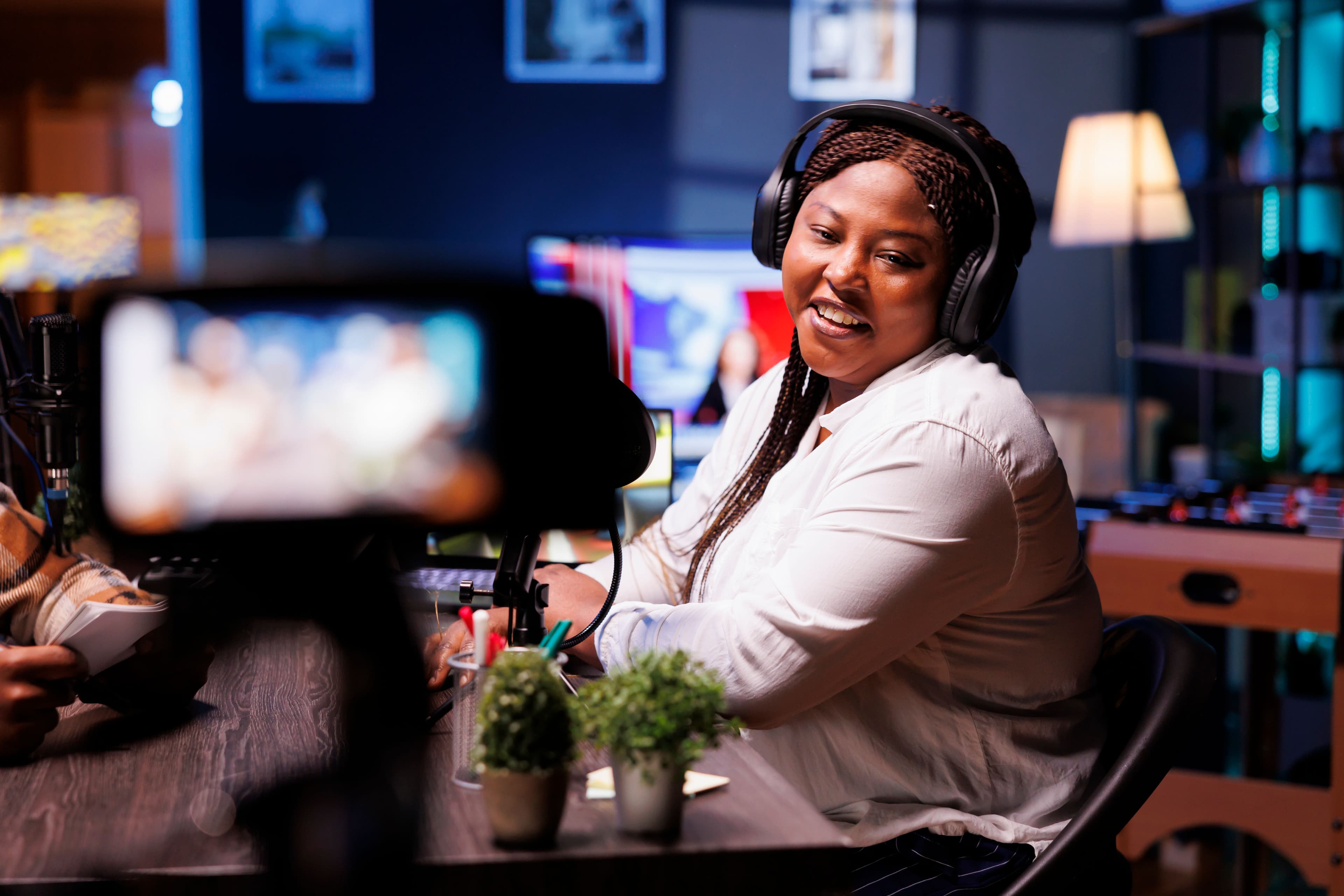
Here's a myth that stops many businesses from collecting video testimonials: "We need professional equipment, a videographer, and a production budget to get testimonials that look good enough for our website."
It's simply not true. Some of the most effective video testimonials on the internet — the ones that actually drive conversions and build trust — were recorded on smartphones, in home offices, with zero production budget. And in many cases, they outperform polished, studio-produced videos because they feel more authentic and relatable.
This guide shows you exactly how to record professional-quality video testimonials without spending a dime. Whether you're recording testimonials yourself or guiding your customers to record their own, these techniques will help you get results that look and sound great — for free.
Why "Professional" Doesn't Mean "Expensive"
When we say "professional-quality video testimonials," we don't mean Hollywood production values. We mean videos that:
- Look clean: Good lighting, stable framing, uncluttered background
- Sound clear: Minimal background noise, audible speech, consistent volume
- Feel authentic: Natural delivery, genuine emotion, real stories
- Are technically solid: Reasonable resolution, proper orientation, adequate length
Achieving all of this is entirely possible with equipment that most people already own — a smartphone, a window, and a quiet room. The difference between an amateur-looking video and a professional-looking one usually comes down to a few simple techniques, not expensive gear.
Let's break down each element.
Stop losing customers to weak social proof
VideoTestimonials lets you collect, manage, and embed video + text testimonials in minutes. Free for 7 days, no credit card.
Lighting: The Single Most Important Factor
If you do nothing else from this guide, get the lighting right. Lighting has a bigger impact on video quality than camera resolution, background, or any other single factor. The good news? The best light source is completely free.
Natural Light Is Your Best Friend
The most flattering, professional-looking light source is a window with indirect sunlight. Here's how to use it:
The setup: Position the person recording (yourself or your customer) facing a window. The window should be in front of them, not behind them. The camera should be between the person and the window (or slightly off to one side).
Why it works: Window light provides soft, even illumination that flatters skin tones and eliminates harsh shadows. It's the same quality of light that professional photographers create with expensive softboxes and diffusers — except it's free.
What to avoid:
- Backlighting: Never sit with a window behind you. This creates a silhouette effect where your face is dark and the background is blown out. It's the most common lighting mistake in video calls and testimonials.
- Direct sunlight: If the sun is shining directly through the window, it creates harsh shadows. Move to a window that gets indirect light, or record on a cloudy day (overcast skies act as a natural diffuser).
- Overhead fluorescent lights: These create unflattering shadows under the eyes and give skin a greenish cast. If you're in an office with fluorescents, turn them off and rely on window light instead.
- Mixed lighting: Avoid combining natural light from a window with artificial light from a lamp on the other side. Mixed color temperatures (warm lamp + cool daylight) look uneven and unprofessional.
If You Don't Have Good Window Light
Not every recording environment has ideal natural light. Here's what to do:
- Use a desk lamp: Position a desk lamp behind your camera/phone, pointing at your face. Drape a white T-shirt or pillowcase over the lamp to soften the light (keep it away from the bulb to avoid fire risk — or use an LED bulb that doesn't get hot).
- Use your laptop screen: In a pinch, a laptop screen set to a white background at maximum brightness can provide enough fill light for a close-up shot.
- Use your phone's front-facing camera: When recording a selfie-style testimonial, the phone screen itself provides subtle fill light on the face.
Audio: More Important Than You Think
Most people focus on how a video looks, but audio quality has an even bigger impact on how professional a video feels. Viewers will tolerate slightly imperfect visuals, but they'll click away from a video with poor audio within seconds.
Find a Quiet Environment
The simplest way to get good audio is to eliminate background noise:
- Close windows to reduce street noise
- Turn off fans, AC units, and appliances that create constant hum
- Avoid rooms with hard, reflective surfaces (tile floors, bare walls) that create echo
- Choose small rooms over large ones — smaller rooms with furniture, curtains, and carpet naturally absorb sound and reduce echo
- Record when the house or office is quiet — avoid peak noise times
Microphone Tips (Free or Nearly Free)
Your smartphone's built-in microphone is surprisingly capable, but there are ways to improve it:
- Get close to the mic: The closer you are to the microphone, the better the voice-to-noise ratio. For a smartphone recording, 12–18 inches from the camera is ideal.
- Use wired earbuds with a built-in mic: The microphone on standard wired earbuds (like the ones that come with smartphones) is positioned close to your mouth and produces significantly better audio than the phone's built-in mic. The earbuds are visible but most viewers don't mind — it looks natural in a remote-recording context.
- Avoid Bluetooth headphones for audio: Bluetooth audio transmission compresses the signal and can introduce latency. Wired connections are always better for recording.
- Do a test recording: Before recording the actual testimonial, record a 10-second test clip and play it back. Listen for echo, background noise, and volume levels. Adjust your environment if needed.
Camera Setup: Getting the Shot Right
Use Your Smartphone
Modern smartphones shoot video in 1080p or higher — more than sufficient for web testimonials. You don't need a DSLR, a webcam, or a dedicated video camera.
Camera settings for smartphone recording:
- Resolution: 1080p (Full HD) is the sweet spot. 4K is overkill for testimonials and creates unnecessarily large files.
- Orientation: Always record in landscape (horizontal) orientation. Vertical videos look amateur on websites and desktop screens. The only exception is if the testimonial will primarily be used on Instagram Stories or TikTok, where vertical is the native format.
- Front vs. rear camera: The front-facing camera is more convenient (you can see yourself while recording), but the rear camera typically has better image quality. Use whichever is more comfortable for the person recording.
- Zoom: Don't use digital zoom — it degrades image quality. Instead, physically position the camera closer to or farther from the subject.
Framing and Composition
How you frame the shot makes a big difference in how professional the video looks.
The rule of thirds: Imagine the screen divided into a 3×3 grid. Position the person's eyes along the upper horizontal line, and their body slightly off-center. This creates a natural, visually pleasing composition.
Headroom: Leave a small amount of space between the top of the person's head and the top of the frame. Too much headroom looks awkward. Too little (cutting off the top of the head) looks unprofessional. About 10–15% of the frame height above the head is ideal.
Eye level: Position the camera at eye level. Looking down at the camera (phone on a desk) creates an unflattering angle and makes the person look small. Looking up at the camera (phone on a high shelf) creates a dramatic angle that feels odd for a testimonial. Eye level is the most natural and flattering.
Distance: Frame the shot from the chest up. This is close enough to see facial expressions and body language but not so close that it feels uncomfortably intimate.
Stabilizing Your Camera
A shaky video is an instant credibility killer. Here's how to keep things stable without a tripod:
- Lean the phone against something: A stack of books, a water bottle, a coffee mug — anything that holds the phone upright and steady at eye level. This is the most common and effective free solution.
- Use a shelf or bookcase: Position the phone on a shelf at eye level. Use a small object behind the phone to tilt it to the correct angle.
- DIY phone stand: Fold a piece of cardboard into a simple V-shape or use a binder clip as a phone stand. There are dozens of tutorials online for DIY phone stands made from household items.
- Don't hold the phone: If someone else is recording, holding the phone introduces subtle shake — even for steady hands. Always set the phone down on a stable surface.
Background
What's behind the person matters more than most people realize. A cluttered, distracting background undermines credibility, while a clean, intentional background enhances it.
Good backgrounds:
- A clean wall (any solid color works, but neutral tones are best)
- A tidy bookshelf (suggests intelligence and professionalism)
- A simple home office setup (relatable and professional)
- A subtle out-of-focus background (achieved by sitting a few feet away from the background)
- A plant or two for visual interest
Backgrounds to avoid:
- Unmade beds, dirty dishes, piles of laundry
- Bright windows (creates backlighting problems)
- Busy patterns, posters, or distracting artwork
- Other people walking around
- Bathroom or kitchen (unless it's relevant to the product)
Pro Tip
If the background is unavoidable and messy, move the person farther away from it. At a distance of 6+ feet from the background, most cameras will naturally blur the background slightly, reducing distractions.
Guiding Your Customers Through the Recording
If you're asking customers to self-record their testimonials (which is the most scalable approach), the guidance you provide makes the difference between an awkward, unusable video and a compelling, conversion-driving testimonial.
Pre-Recording Guidance
Send customers a brief guide before they record. Keep it short — a long list of instructions will intimidate people and reduce participation. Here's a template you can use:
Subject: Quick tips for your testimonial video
Thanks for agreeing to record a testimonial! Here are a few quick tips to make sure it comes out great:
Setup (1 minute):
- Find a quiet room with good natural light (face a window if possible)
- Prop your phone up at eye level — lean it against a stack of books
- Record in landscape (horizontal) orientation
- Make sure the background behind you is tidy
Recording (2–3 minutes):
- Just be yourself — this doesn't need to be polished or perfect
- Speak naturally, as if you're telling a friend about your experience
- Here are some questions to guide you (answer whichever feel relevant):
- What was your situation before using [product]?
- What made you decide to try [product]?
- What's been your experience so far?
- What results have you seen?
- Who would you recommend [product] to?
That's it! Don't worry about stumbles or pauses — they make it feel real. Click the link below when you're ready to record:
[RECORDING LINK]
The Questions That Produce the Best Testimonials
The questions you provide are the single biggest lever for testimonial quality. Here are the principles:
Start with the "before": Asking about their situation before using your product creates narrative context. Viewers understand the starting point and can relate to the problem.
Ask about the decision: "Why did you choose us?" reveals what differentiates your product in the customer's eyes — which is exactly what prospects want to know.
Focus on specific results: Vague testimonials ("it's great!") are forgettable. Specific results ("we reduced our response time by 60%") are compelling. Ask questions that elicit specifics.
End with a recommendation: "Who would you recommend this to?" naturally produces a closing statement that speaks directly to the prospect's self-identification.
Don't ask too many questions: Five questions is the sweet spot. More than that feels like a homework assignment and reduces completion rates.
Coaching Tips for Better Delivery
If you're working with customers who are nervous about being on camera (which is common), here are coaching tips you can share:
- "Pretend you're talking to a friend": This simple reframe produces more natural, relaxed delivery than any other technique
- "It's okay to start over": Knowing they can re-record takes the pressure off the first take
- "Speak a little slower than normal": People tend to speed up when they're nervous. A conscious effort to slow down produces more articulate, confident delivery
- "Look at the camera, not at yourself": When recording on a front-facing camera, it's natural to look at your own face on screen. But looking at the camera lens creates the impression of eye contact with the viewer — much more engaging
- "Don't read from a script": Written scripts produce robotic, inauthentic delivery. Bullet points or guiding questions are fine, but full scripts are counterproductive
- "Smile at the beginning and end": A genuine smile at the start and finish of the video bookends the testimonial with warmth
Recording Software and Apps (All Free)
You don't need to buy any software to record, edit, or manage video testimonials. Here are the best free options:
For Self-Recording on Smartphone
- Built-in camera app: Every smartphone has a camera app that records 1080p video. It's all you need for the recording itself.
- Timer function: Use the built-in timer (usually 3 or 10 seconds) so the person can tap record and get into position.
For Self-Recording on Desktop
- Zoom (free tier): Start a Zoom meeting by yourself and record. The free tier allows recordings up to 40 minutes. The quality is solid and the interface is familiar to most people.
- Loom (free tier): Loom's free plan allows you to record up to 25 videos of up to 5 minutes each. The interface is simple and the recording quality is good.
- QuickTime Player (Mac): Built into every Mac. Go to File → New Movie Recording. It uses the Mac's built-in camera or an external webcam.
- Camera app (Windows): Windows 10/11 has a built-in Camera app that records video using the laptop's webcam.
- OBS Studio (free, open source): For more advanced users, OBS offers full control over recording settings, resolution, and audio. It's overkill for most testimonials but it's completely free.
For Remote Collection
- Browser-based recording tools: Platforms like VideoTestimonials provide a simple link that customers can open in their browser to record a video — no app downloads, no accounts required. This is the lowest-friction option for collecting testimonials from customers remotely.
- Google Meet or Zoom: Conduct a recorded video call with the customer and use the recording as the testimonial (with their permission). This works well for interview-style testimonials.
For Basic Editing (If Needed)
Most testimonials don't need editing — the raw recording is the final product. But if you need to trim the beginning/end or cut out a section:
- iMovie (Mac, free): Simple drag-and-drop editing. Great for trimming, adding basic transitions, and exporting.
- CapCut (free): Available on mobile and desktop. Excellent for quick edits, trimming, and adding captions.
- DaVinci Resolve (free tier): Professional-grade video editor with a robust free version. More powerful than most people need for testimonials, but available if you want more control.
- Clipchamp (Windows, free): Microsoft's free video editor, built into Windows 11. Simple interface, adequate for basic cuts and trims.
Common Mistakes and How to Avoid Them
Mistake 1: Recording in Vertical Orientation
Vertical videos look fine on Instagram Stories but terrible when embedded on a website. Always record in landscape orientation for testimonials that will appear on your site.
Exception: If you're creating testimonial clips specifically for Instagram Reels, TikTok, or YouTube Shorts, vertical is the correct orientation. You can record in landscape and crop to vertical later, or record separately for each format.
Mistake 2: Too Long
The ideal testimonial length is 60–180 seconds. Anything longer than 3 minutes risks losing the viewer's attention. If a customer records a 7-minute video, don't use it as-is — edit it down to the strongest 2 minutes.
Shorter testimonials (30–60 seconds) are ideal for homepage carousels, social media, and ads. Longer testimonials (2–3 minutes) work well on dedicated testimonial pages and in email sequences where viewers are more engaged.
Mistake 3: Over-Scripting
The biggest destroyer of testimonial authenticity is a script. When people read from a script, they sound robotic, they lose natural intonation, and viewers immediately sense that something is off.
Instead, provide 3–5 guiding questions and let the customer speak naturally. Imperfect delivery — with "um"s, pauses, and off-the-cuff phrasing — actually increases perceived authenticity.
Mistake 4: Bad Audio
A beautifully lit, perfectly framed video with terrible audio is essentially unwatchable. Always prioritize audio:
- Test the audio before recording the full testimonial
- Use wired earbuds if the environment is noisy
- Record in a room with soft furnishings to reduce echo
- Get close to the microphone
Mistake 5: Ignoring the Background
A pile of laundry, an unmade bed, or a chaotic desk behind the speaker undermines credibility — even if the testimonial itself is great. Take 60 seconds to clean up or reposition before recording.
Mistake 6: Not Providing Guidance
Sending a customer a recording link with no context produces terrible testimonials. "Hey, record a video about us" results in awkward, vague, unusable content. Always provide guiding questions, basic setup tips, and clear expectations about length.
Mistake 7: Waiting for Perfection
Many businesses delay collecting testimonials because they want to wait until they have professional equipment, or until their product is "further along," or until they find the "perfect" customer. Don't wait. An imperfect testimonial published today is infinitely more valuable than a perfect testimonial that never gets recorded.
The testimonials you collect with a smartphone and natural light will be more than good enough. Start collecting now and upgrade your production quality later if needed.
A Complete Checklist for Recording a $0 Testimonial
Here's a printable checklist you can share with customers or use yourself:
Before recording:
- Find a quiet room with minimal background noise
- Face a window for natural light (light should be in front of you, not behind)
- Prop phone at eye level in landscape (horizontal) orientation
- Check background is clean and uncluttered
- Do a 10-second test recording — check lighting, audio, and framing
- Review the guiding questions (don't memorize — just familiarize)
During recording:
- Look at the camera lens (not at yourself on screen)
- Speak naturally, as if talking to a friend
- Cover the key points: before, decision, experience, results, recommendation
- Aim for 60–180 seconds
- Smile at the start and finish
- Don't worry about minor mistakes — authenticity is the goal
After recording:
- Play back the video — check audio clarity and video quality
- Re-record if there are major issues (bad audio, wrong orientation, backlighting)
- Submit or send the video to the requesting company
The Bottom Line: Start Today With What You Have
The biggest mistake businesses make with video testimonials isn't using the wrong equipment or the wrong lighting setup. It's not starting at all.
Every day you wait to collect video testimonials is a day you're leaving conversions on the table. The testimonials you record today — with your smartphone, in your home office, with natural light from your window — will be more than good enough to start building trust with your prospects.
Don't let the pursuit of perfection prevent you from capturing the authentic customer stories that can transform your marketing. Your customers don't care about production quality. They care about hearing from real people with real experiences. And the best way to deliver that is to start recording — today, for free, with what you already have.
VideoTestimonials makes it easy to collect video testimonials remotely — just send your customers a link, they record in their browser, and you get a high-quality testimonial ready to showcase on your website. No equipment, no scheduling, no budget required. Start collecting for free today.
VideoTestimonials Team
·Editorial TeamThe VideoTestimonials team shares guides, tips, and strategies for collecting and showcasing testimonials that convert.
Related Glossary Terms
Aspect Ratio
The proportional relationship between a video's width and height, such as 16:9 (widescreen) or 9:16 (vertical).
B-Roll
Supplementary footage that is intercut with the primary interview footage to add visual variety and context.
Jump Cut
An abrupt edit within a single shot that creates a visible jump in time or position, used to trim pauses.
Remote Video Recording
Technology that allows customers to record video testimonials from their own device without in-person filming.
Screen Recording
A video capture of on-screen activity, often used in testimonials to demonstrate product usage and results.
Talking Head Video
A video format featuring a person speaking directly to the camera, commonly used for testimonials and vlogs.
Related Articles
Related Articles

Why You Should Transcribe Every Video Testimonial (And How to Do It)
Discover the SEO, accessibility, and content repurposing benefits of transcribing video testimonials. Includes tools, best practices, and implementation guidance.

Building a Testimonial Approval Workflow: From Submission to Published
Design a structured testimonial approval workflow covering quality review, legal clearance, customer sign-off, and publication. Includes templates and checklists.
How to Turn NPS Promoters into Video Testimonials (Automated Pipeline)
Build an automated pipeline that identifies NPS promoters and converts them into video testimonials. Covers survey design, trigger logic, outreach, and recording workflows.

Build trust.
Drive revenue.
Stop losing customers to a lack of social proof. Start collecting and showcasing high-converting testimonials today.